MICROSOFT 365 COPILOT BLOG
Microsoft 365 Copilot: What’s New | April 2026
This is the English edition of the Chinese compilation of the official Microsoft 365 Copilot monthly update for April 2026. Each month, we compile new features and improvements to help Microsoft 365 administrators stay current with the latest Copilot capabilities and enable users to work more efficiently in the apps they use every day.

User capabilities
Microsoft 365 Copilot app: Mobile redesign and data grounding capabilities
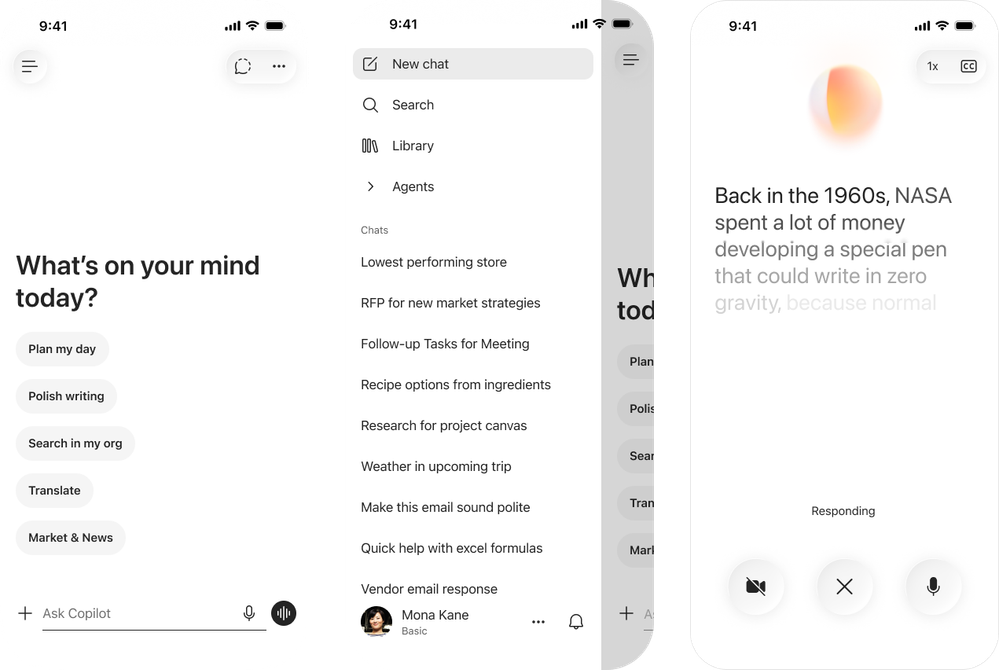
New chat-first design for the mobile appRolling out in May
The Microsoft 365 Copilot mobile app has a new chat-first interface that is cleaner and more intuitive. This update adds text-formatting support to the prompt input and uses a new layout that makes responses easier to view, copy, reopen, and trace to their sources through citations. The app menu has also been streamlined, making it easier for users to switch among Copilot experiences. The overall look is more modern, with a liquid-glass style and a new visual presentation for voice conversations.
Generate interactive visualizations and apps in Copilot Pages with Work IQRolled out in April
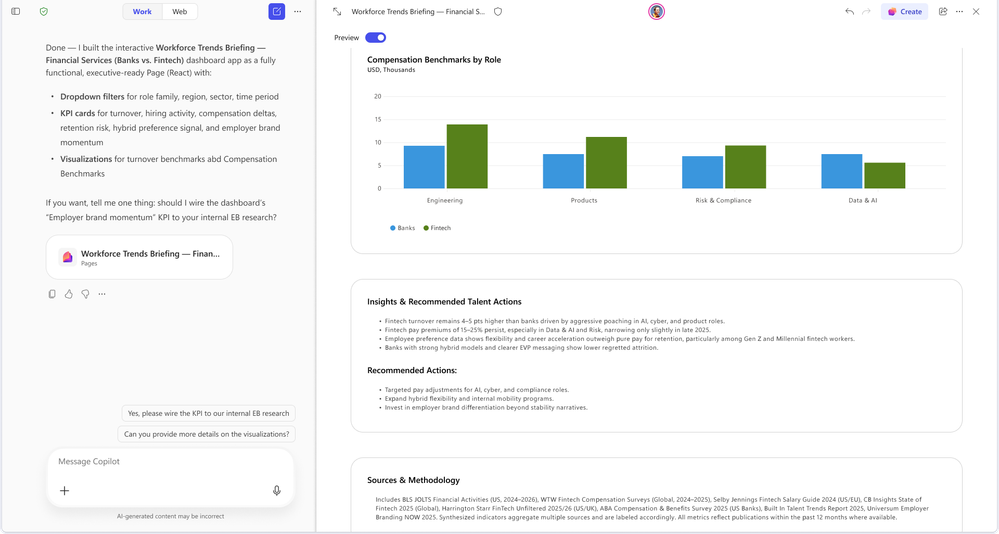
Users could already create and preview interactive content such as lightweight dashboards, reports, and visualizations in Copilot Pages, grounded in web data. Now, users can use Work IQ to generate these interactive visualizations and apps, exploring and iterating without leaving the page. When the artifact needs further configuration and management, App Builder can be opened directly from the page.
A major wave of updates for Copilot Notebooks
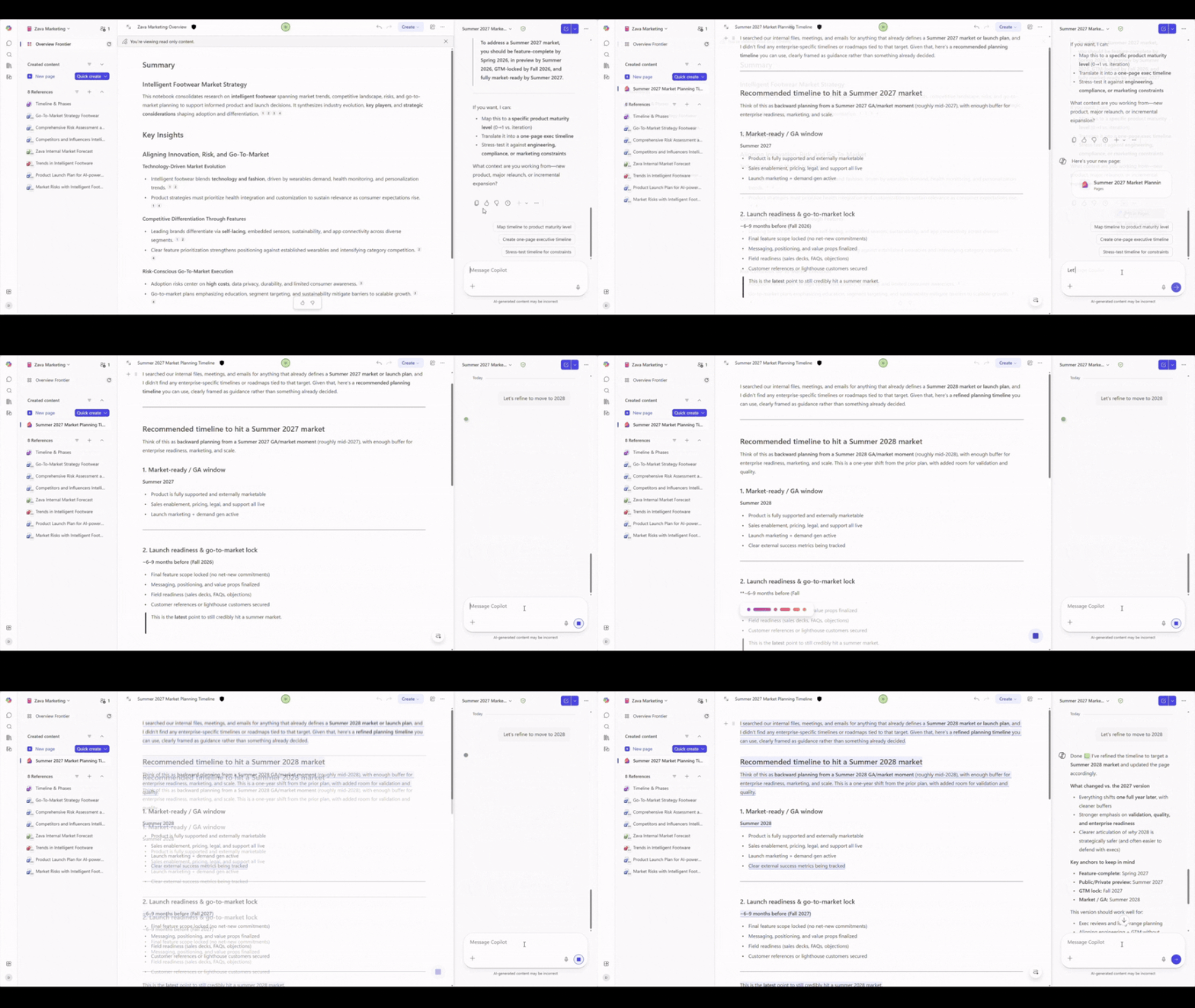
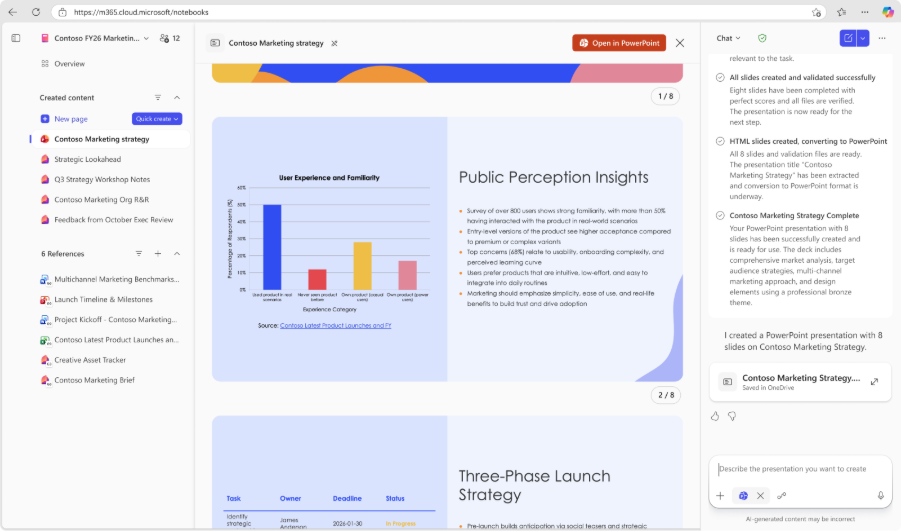
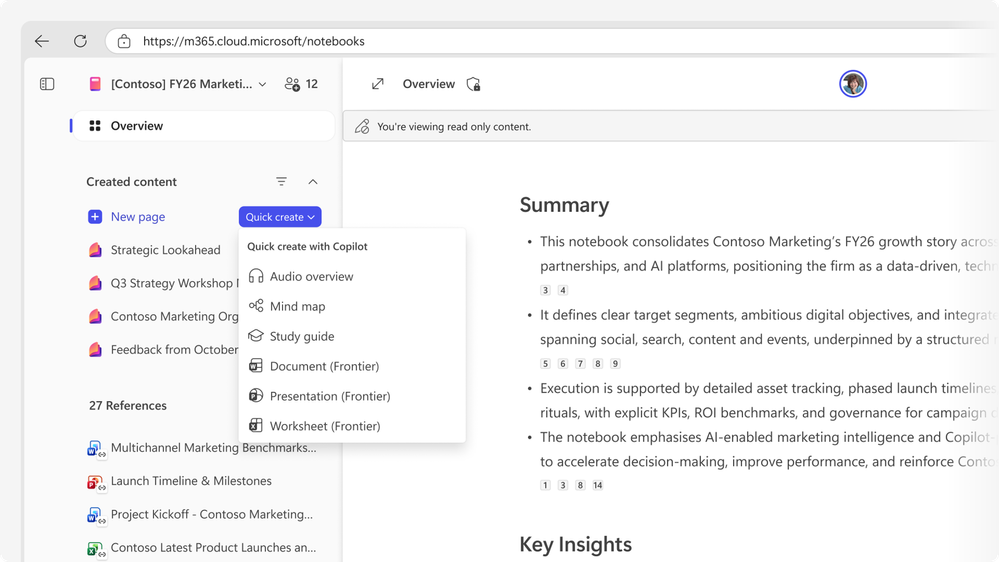
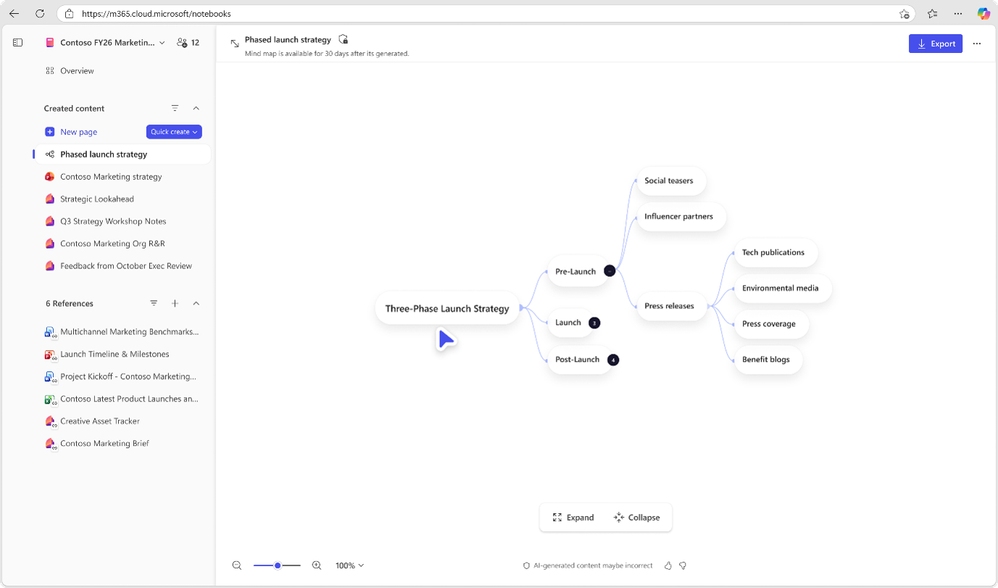
Rolling out through April and MayCopilot Notebooks is rolling out a series of preview features to users enrolled in Frontier, spanning content creation, collaboration, and learning. These include referencing SharePoint content and OneNote notebooks, editing Copilot Pages with Copilot, generating Word documents or PowerPoint presentations from notebook content, sharing notebooks with Microsoft 365 groups, and exploring content through mind maps and study tools.
- Create and edit Copilot Pages through chatRolling out in May
Users no longer need to edit pages manually. They can simply describe in chat what they want to change or create, and Copilot updates the page directly. For administrators, this lowers the learning barrier for managing notebook content on the web and helps drive adoption. - Use external webpage links as reference sourcesRolling out in May
Users can paste a URL as a reference source for Notebooks. Copilot uses the webpage content to ground conversations and outputs within the notebook, extending Copilot grounding from internal content to the external web and supporting richer research while keeping notebook context focused. - Generate a PowerPoint presentation with one clickRolling out in May
Copilot can directly use the notes, reference sources, and structure already in a notebook to draft slides with a consistent style and prebuilt visual elements, ready for refinement. Users can specify the focus, level of detail, length, and design theme selected from sample templates. The PowerPoint agent then generates a structured, editable first draft that users can continue refining in PowerPoint. - Generate a Word document with one clickRolling out in May
Users can quickly generate reports, summaries, proposals, and other documents based on content and reference sources collected in a notebook. They simply describe their needs in the prompt and customize the document type, core topic, target audience, and tone. Copilot generates a first draft that users can open and finalize in Word. - Mind mapsRolling out in May
Mind maps interactively present key themes and their relationships across the entire notebook, supported by the source material. Users can expand nodes, view summaries of specific areas, and ask Copilot for deeper interpretation of the content on the map, helping them understand complex concepts and notes more quickly. - Multimodal capture in OneNote mobile (iOS)Rolled out on iOS in May
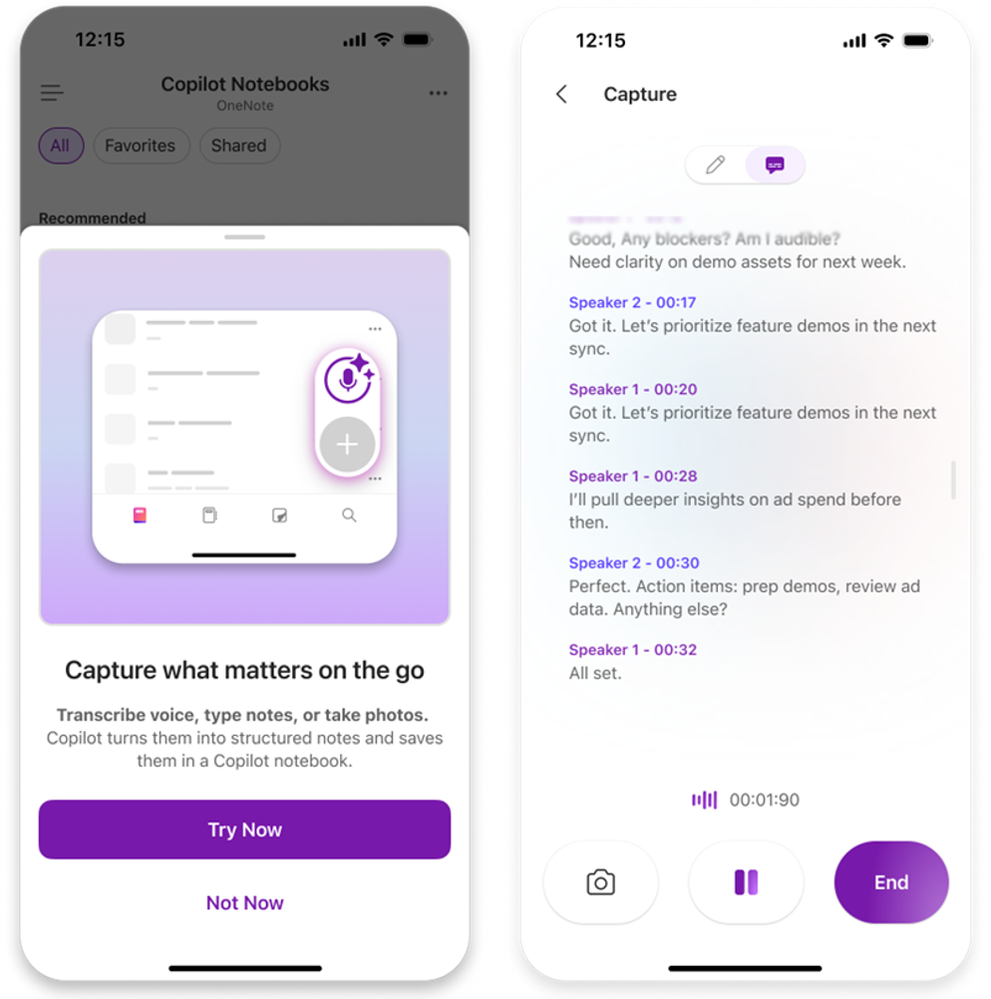
Users can capture audio transcripts, images, and handwritten notes in a single session, making this especially useful for offline scenarios such as in-person meetings and whiteboard discussions. Copilot then organizes the capture into a structured Copilot Page containing insights and the user's original content, and saves it to the specified notebook.
Copilot in Excel: Plan mode and Python support
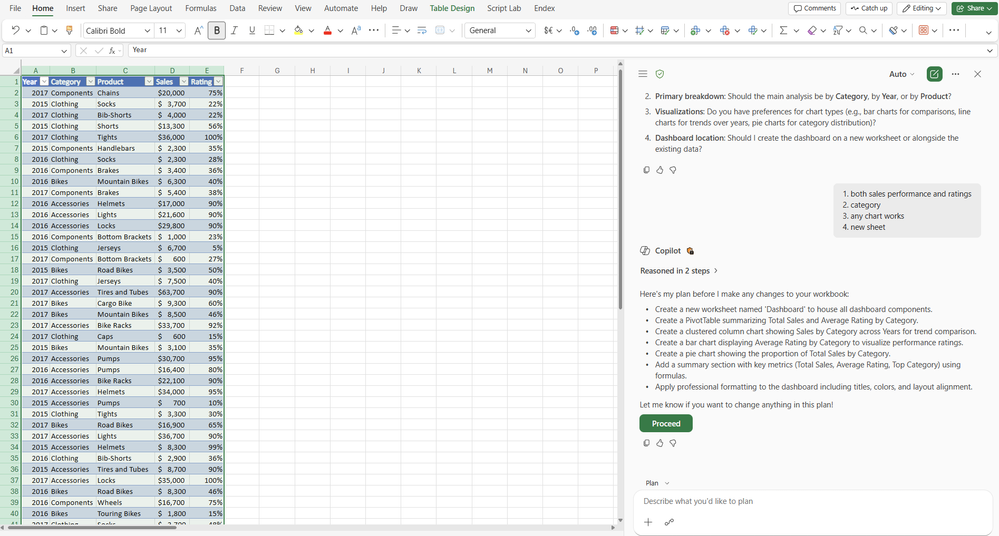
Plan modeRolling out in May
Before changing a workbook, Plan mode provides a clear step-by-step plan so users can confidently carry out complex changes. Users enter it by selecting “Plan” from the menu above the prompt input. They can then see how Copilot intends to complete the task and what data or capabilities it will use, and adjust the plan as needed—ensuring every edit is intentional, transparent, and expected before any change is actually made. This keeps users in control when handling multistep or high-impact tasks.
Python supportRolling out in May
Copilot can now use Python when editing Excel, enabling more advanced data analysis without leaving the workbook. While making edits, Copilot can apply Python techniques to transform data, generate visualizations, and complete complex multistep tasks. With Python enabled, Copilot can also produce visual results such as charts directly during the editing process. Users can explicitly request Python in a prompt, and Copilot will also invoke it automatically when needed.
Copilot in PowerPoint: Image editing options and public web grounding
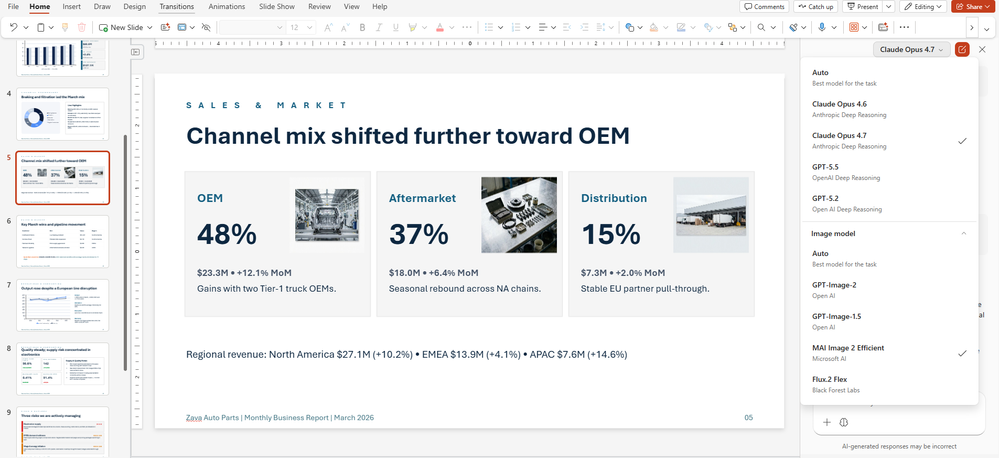
Choose an image generation modelRolled out in April
When creating or editing an image, users can choose which image model to use, including GPT-Image and Flux, or let the “Auto” setting select the model best suited to the current need. When users generate visuals for a slide or modify an existing image, Copilot routes the prompt to the selected model and returns a result that can be iterated on. Model choice allows image generation to align more closely with team expectations for quality, style, and governance requirements.
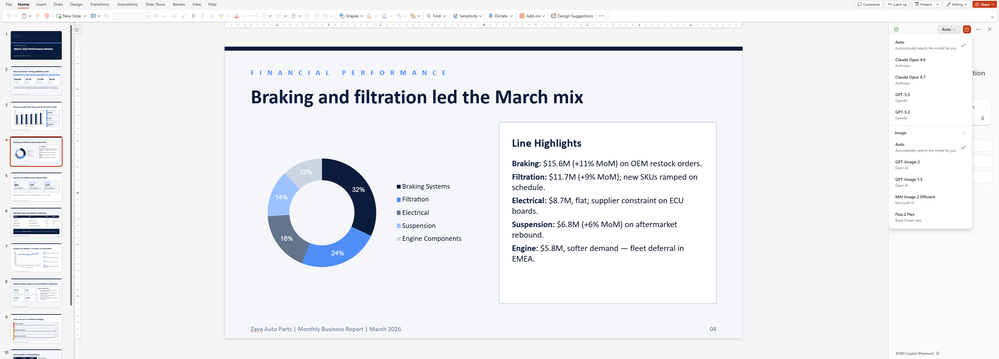
Microsoft AI Image 2 Efficient modelRolled out in April
Users can now edit images with the Microsoft AI Image 2 Efficient model, delivering high-quality creation and editing results faster. Whether generating new visuals from a prompt or refining an existing image, users can quickly iterate toward the desired style, tone, and content. The model's performance and efficiency improvements let teams produce polished, presentation-ready visuals without leaving Microsoft 365.
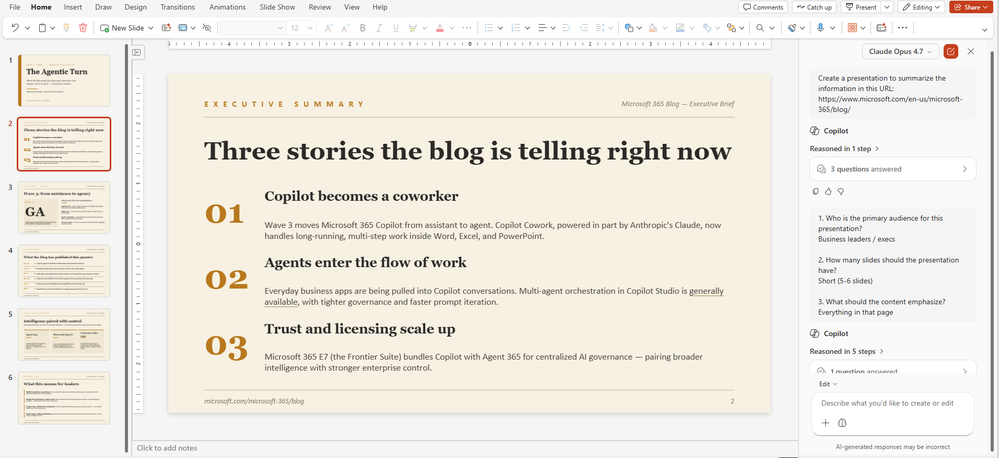
Use public webpages as source materialRolled out in April
When creating presentations, Copilot can now use public webpages as source material, letting users ground slides in the latest external information without copying and pasting. After a webpage reference is added, Copilot extracts the relevant context and generates an initial outline and slides that can be further refined, helping users create more accurate, reliably sourced presentations within Microsoft 365.
Copilot in Word: New Claude model
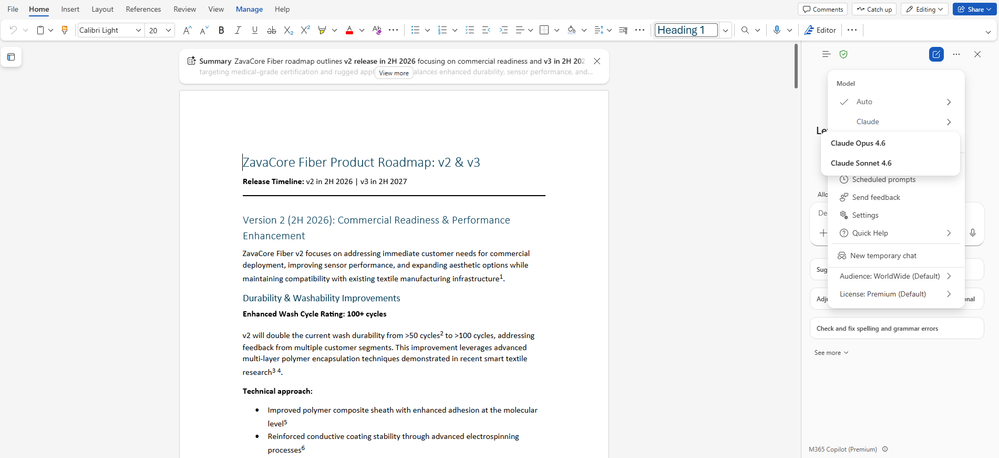
Rolled out in AprilCopilot in Word now offers a Claude model option, giving users another high-quality large-model choice when drafting or editing content. Users can select an Anthropic model in addition to the OpenAI model family, and Copilot runs the same editing workflow with the selected model. For teams that prefer specific model behaviors, this provides more flexibility within a governed environment.
Copilot in Teams: Call delegation and consecutive interpretation
Copilot call delegationRolling out in May
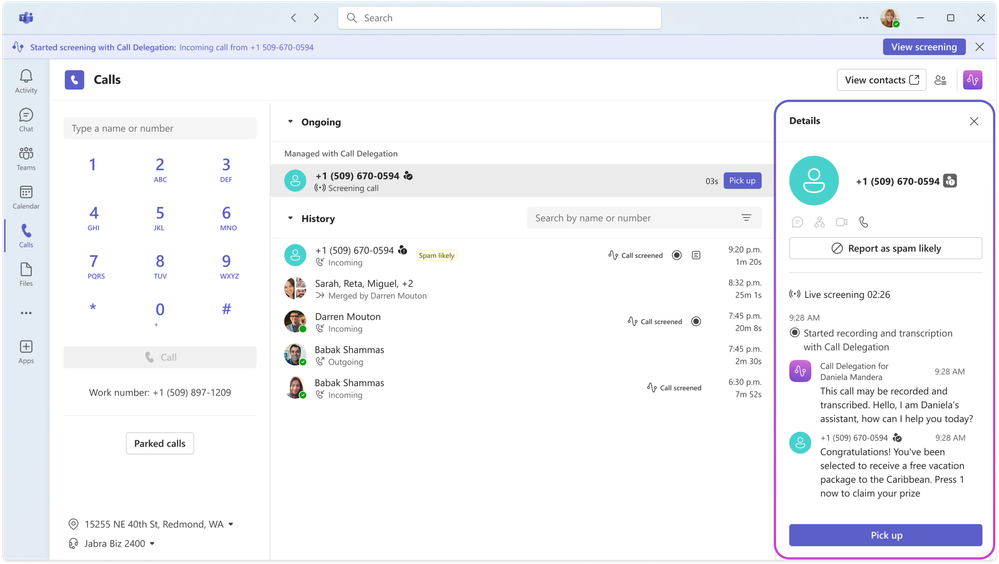
Users can now authorize Copilot to handle Teams calls on their behalf. Once enabled in Teams call settings, Copilot can help answer incoming calls and ask callers for background information so users can decide whether to take the call. It can also schedule follow-up appointments through Microsoft Bookings, ensuring users do not miss callers who truly matter.
Consecutive interpretationPublic preview in April
Consecutive interpretation is a new mode for Interpreter in Microsoft Teams that makes bilingual meeting collaboration feel more natural. In this mode, interpretation begins only after each speaker finishes, creating an alternating rhythm that more closely reflects how people communicate in multilingual conversations. Consecutive interpretation also places the interpreter on the meeting stage, where everyone can see and hear them, making it easier to follow the pace, join the discussion, and stay aligned. Interpreter now supports two modes: real-time simultaneous interpretation, introduced last year, and consecutive interpretation, designed for back-and-forth conversations.
Copilot in OneDrive: Ready-to-use prompts
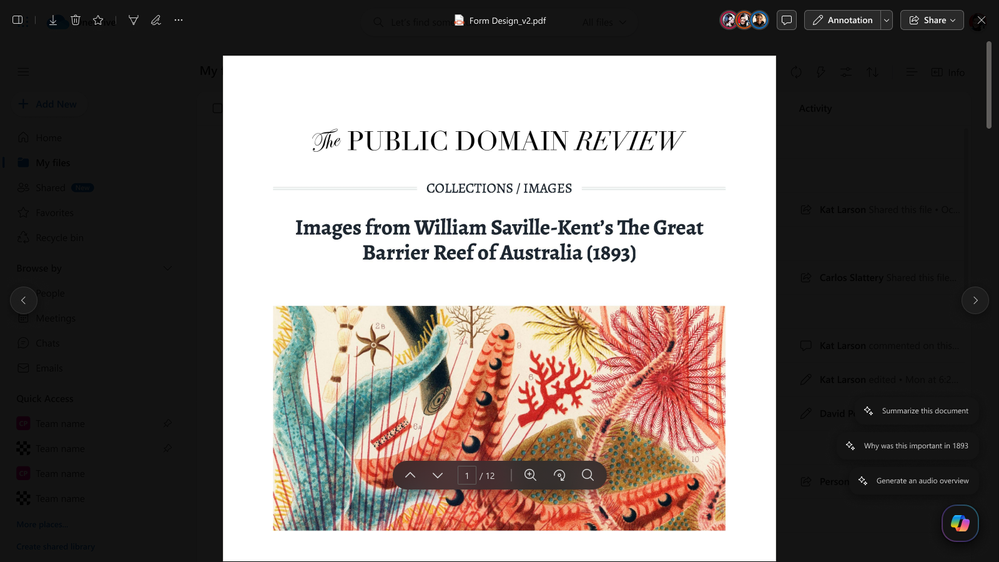
Rolled out in AprilThe OneDrive file preview now includes discoverable entry points for Copilot actions, showing users what Copilot can do as soon as they open a file. Also available in SharePoint, the feature displays a set of ready-made prompts next to the Copilot button, helping users directly perform tasks such as summarizing content and generating FAQs without creating a prompt from scratch. This lowers the barrier to getting started with Copilot and makes its use more consistent across content types.
Submit agents to the Agent Store through Agent Builder
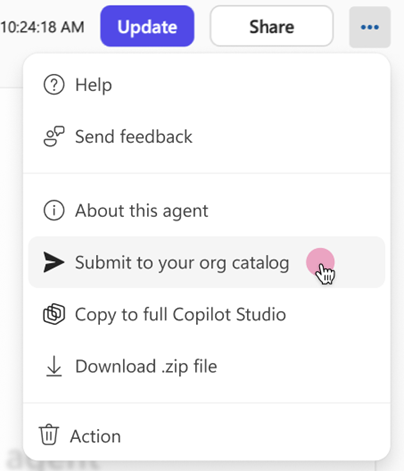
Rolling out in MayAgent Builder adds a submission and approval workflow: before an agent can be published to the organization's Agent Store catalog, it must be submitted to an administrator for review and approval. This helps organizations distribute high-quality internal agents at scale while allowing IT administrators to maintain control. Once approved, the agent appears in the Agent Store's “Built by your org” section for users across the organization to discover and install.
Copilot in Outlook: Draft directly on the canvas
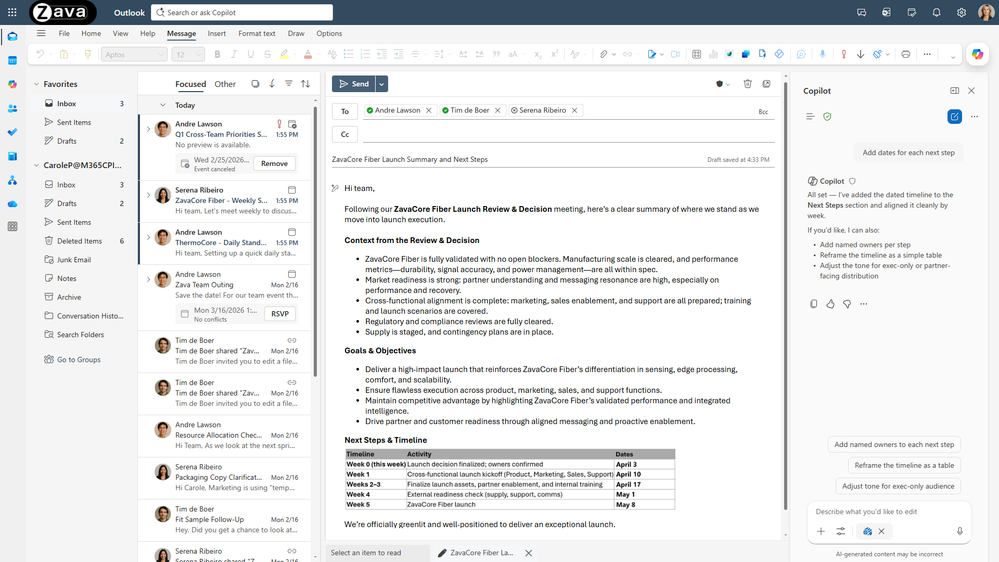
Rolled out in new Outlook in MarchCopilot in Outlook now writes a first draft directly on the compose canvas and can continue iterating with the user to improve it. Rather than generating a one-off draft, it writes in place, asks clarifying questions about the objective, audience, or tone, and then updates the email in place based on the user's answers. With just a few quick interactions, users can refine an email until it is ready to send. Every change remains clearly visible in Outlook, with no copying and pasting or unexpected formatting issues.
IT admin capabilities
Copilot Dashboard: Export by day and power-user insights
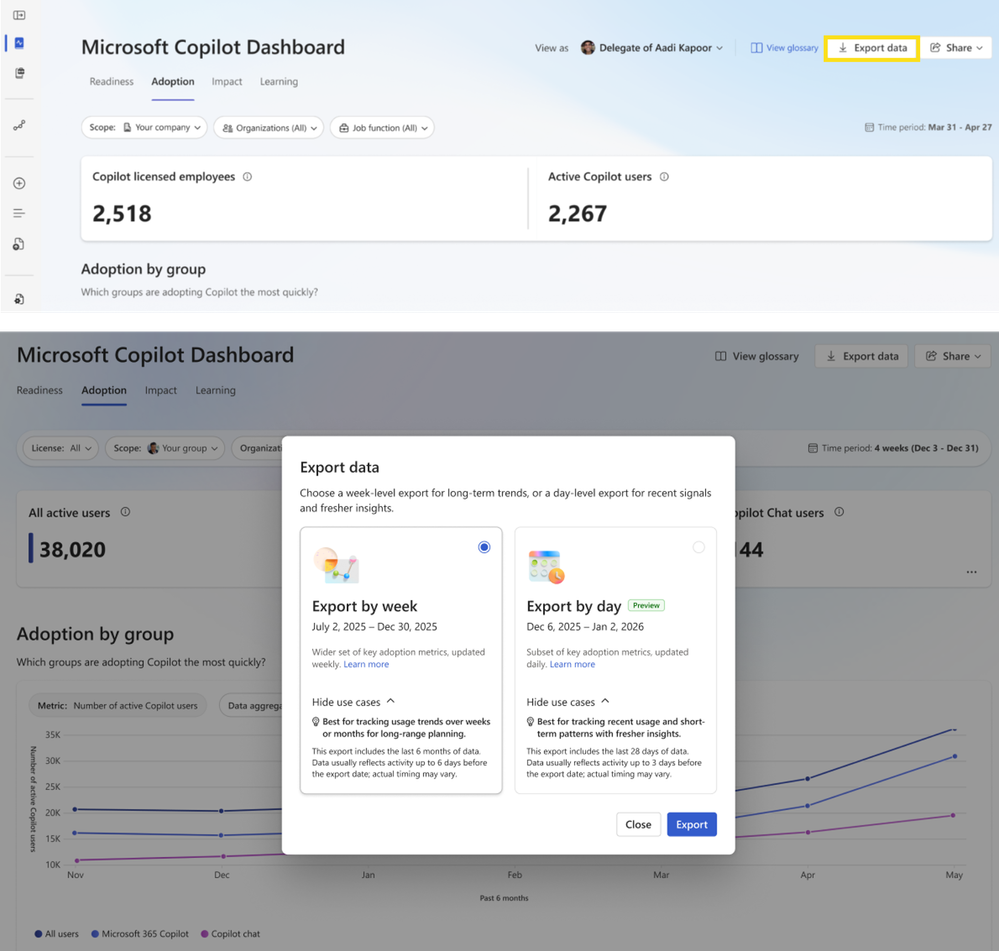
Export by dayPublic preview in May; rolling out globally in August
Administrators can now make faster decisions about license allocation or intervention adjustments based on the latest Copilot adoption and impact data. Export by day lets them download de-identified Copilot usage metrics aggregated by user and date for the past 28 days, enabling faster, more data-informed judgments about adoption and licensing.
Power users insightsRolling out in May
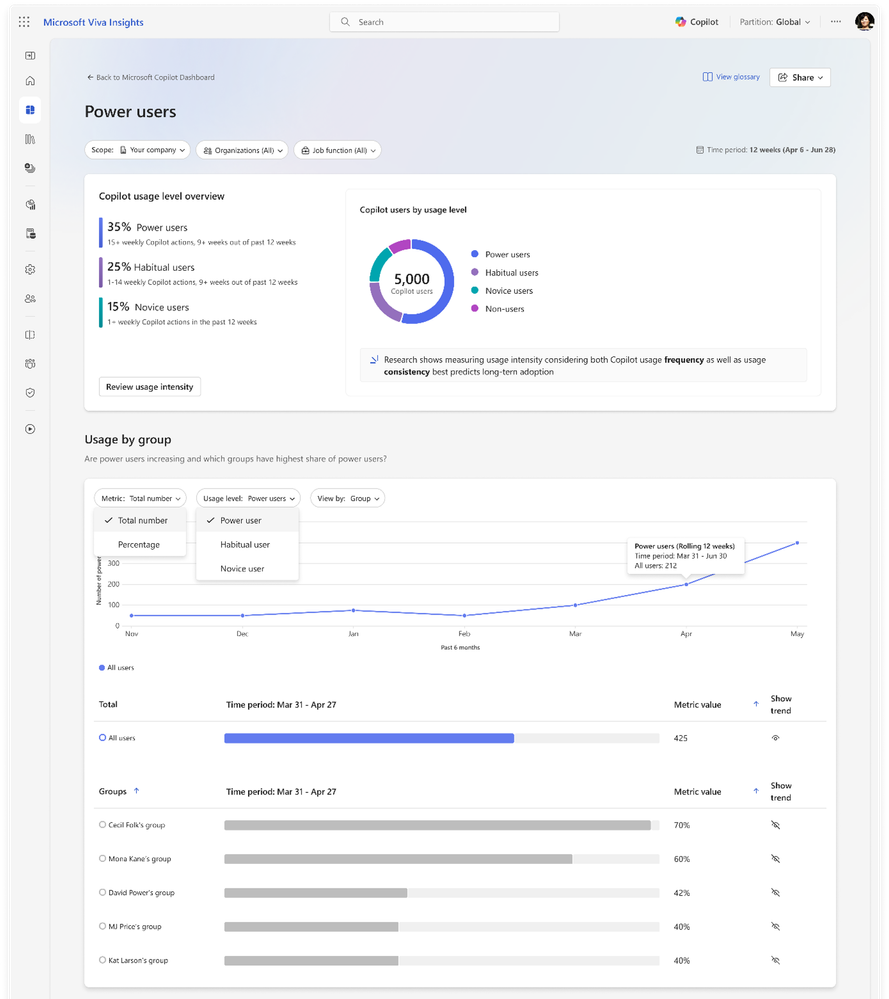
Administrators can now identify the most engaged Copilot users and direct enablement resources where they will have the greatest effect on sustained adoption. In the updated Adoption tab of the Copilot Dashboard, this feature categorizes users as power users, habitual users, novice users, or non-users of Copilot based on frequency and consistency of use. This helps organizations activate internal advocates, identify repeatable workflows, and scale enablement across the organization.
Microsoft 365 admin center: New billing management and organizational message options
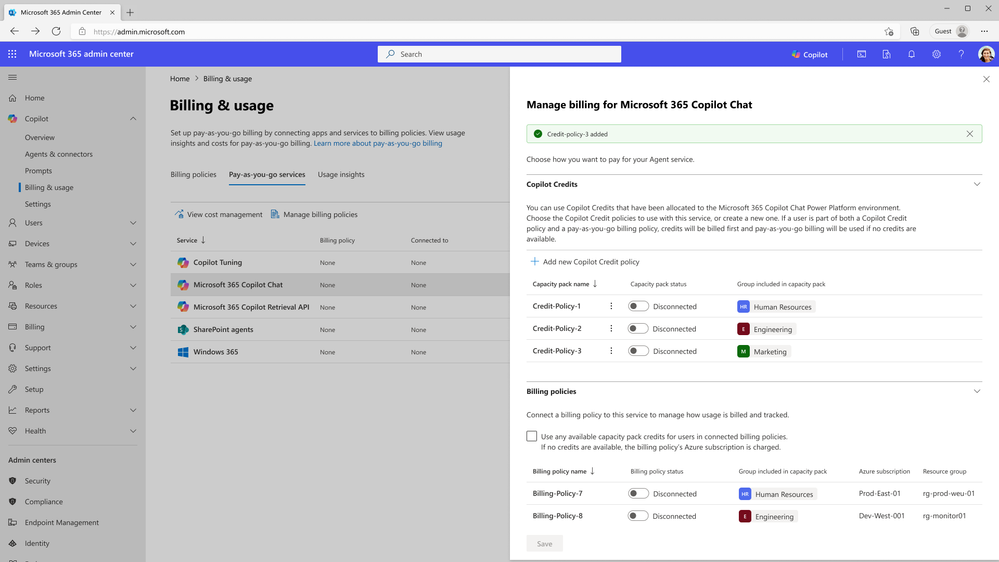
Prepaid capacity pack credits as the sole billing methodRolled out in April
The Microsoft 365 admin center now supports setting prepaid capacity pack credits as the sole billing method for supported pay-as-you-go Copilot experiences, enabling usage-based billing scenarios while avoiding additional pay-as-you-go charges. Administrators can create capacity pack policies to ensure that users covered by a policy consume only available prepaid credits, making spending more predictable and better aligned with internal budgets.
Email delivery for organizational messagesRolled out in April
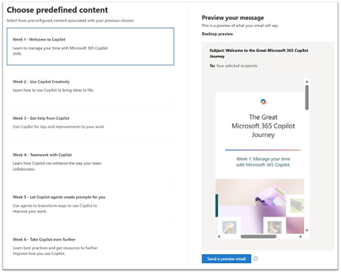
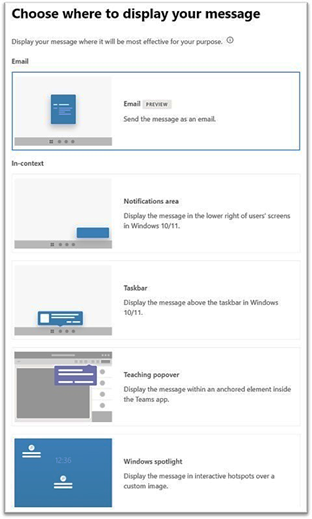
Organizational messages in the Microsoft 365 admin center can now be delivered by email in addition to Windows touchpoints such as the taskbar, Spotlight, notifications, and Teams pop-up prompts. This gives administrators another familiar communication channel while keeping message management centralized in the same workflow. The new email channel extends reach, reduces reliance on separate tools, and simplifies change communications.
User segments for organizational messagesRolled out in April
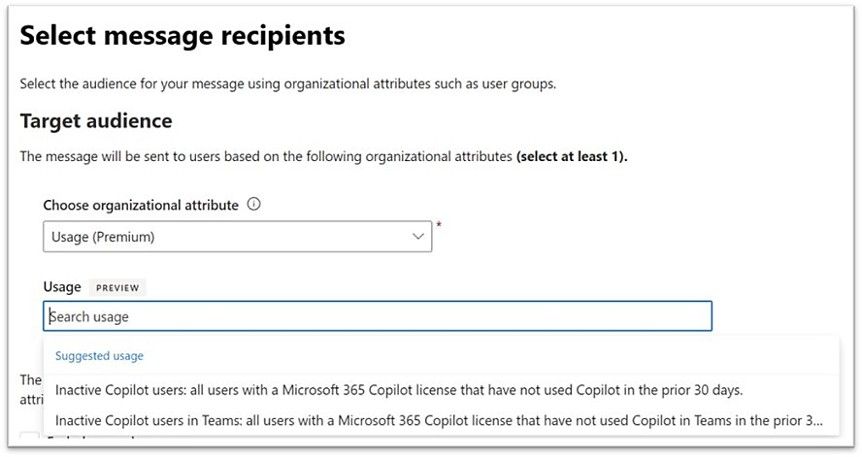
Administrators can now target organizational messages to dynamic audiences driven by usage behavior, rather than being limited to static user groups. For example, they can send a message specifically to users who “have not yet tried a feature,” making communication more relevant and better timed. This helps increase engagement while minimizing noise—reaching the right people with the right message.